...
- Log in and access CSF on your platform of choice.
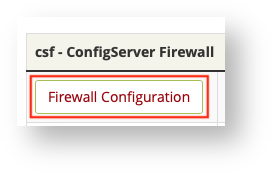
- You can click the CSF tab at the top of the page or scroll down the list of options from the main interface until you find the Firewall Configuration button. Click it.
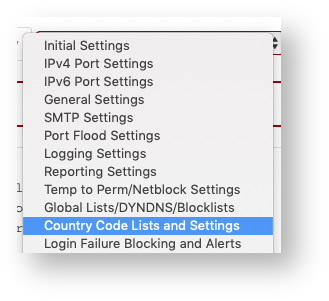
- The CSF configuration file is enormous, so rather than hunting manually for the section we are interested in, select Country Code Lists and Settings from the drop-down list near the top of the screen. This will automatically show only the section that we need.
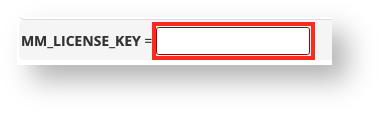
- First you need to decide what IP geolocation services you want to use. If you want to use MaxMind's GeoIP Lite service (this is what CSF used to use exclusively), you now need to register for a free license. You can register here. Once you have a license key (be aware you will only be shown this license key one time, when you first sign up for it), enter the key into the MM_License_Key field. Leave this field blank if you don't want to use MaxMind's service.
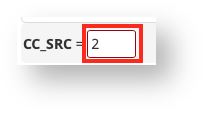
- Now you need to tell CSF which geolocation service to use. Enter the number 1 to use MaxMind (only do this if you've entered the license key in step 4) or enter the number 2 to use three different currently free services (no license required). If in doubt, set CC_SRC to 2.
- Next, look for The first editable item in this section is the one we need, CC_DENY:
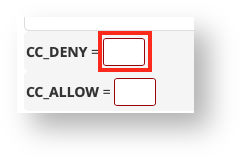
- Enter a comma separated list of ISO country codes into that field.
- When you are done, scroll all the way to the bottom of the page and click the Change button to apply your changes to the csf.conf file.
- Finally, click the Restart csf+lfd button to immediately implement the changes you just made.
...